
In-Class Exercise #8 – Pivot Tables., Exams of Applied Computing

This tutorial provides an overview of creating pivot tables and pivot charts in Microsoft Excel. The screenshots are from Office 2013.

Typology: Exams

2021/2022

Uploaded on 07/05/2022

paul.kc
paul.kc 🇦🇺

4.7

(68)

1K documents

1 / 10

Toggle sidebar

This page cannot be seen from the preview

Don't miss anything!

bg1
In-Class Activity #8: Pivot Tables and Charts Tutorial
(Due Monday, March 20, 9:00 am)
Submission Guideline:
o Submit a single WORD/PDF file for Questions 1, 2, 3 and 4.
o The file should include: (1) the answers to each question, and
o (2) the Pivot Table or Pivot Chart (unless otherwise specified) created to answer the question.
This tutorial provides an overview of creating pivot tables and pivot charts in Microsoft Excel. The screenshots are
from Office 2013. Things may look a little different if you have an earlier version (or the Mac version!) of Excel.
First, let’s look at the data cube with which we will be working. The data cube is contained in the file “In-Class
Exercise #8 - Salesperson Cube - for class.xlsx.” There is information about 800 sales transactions that occurred
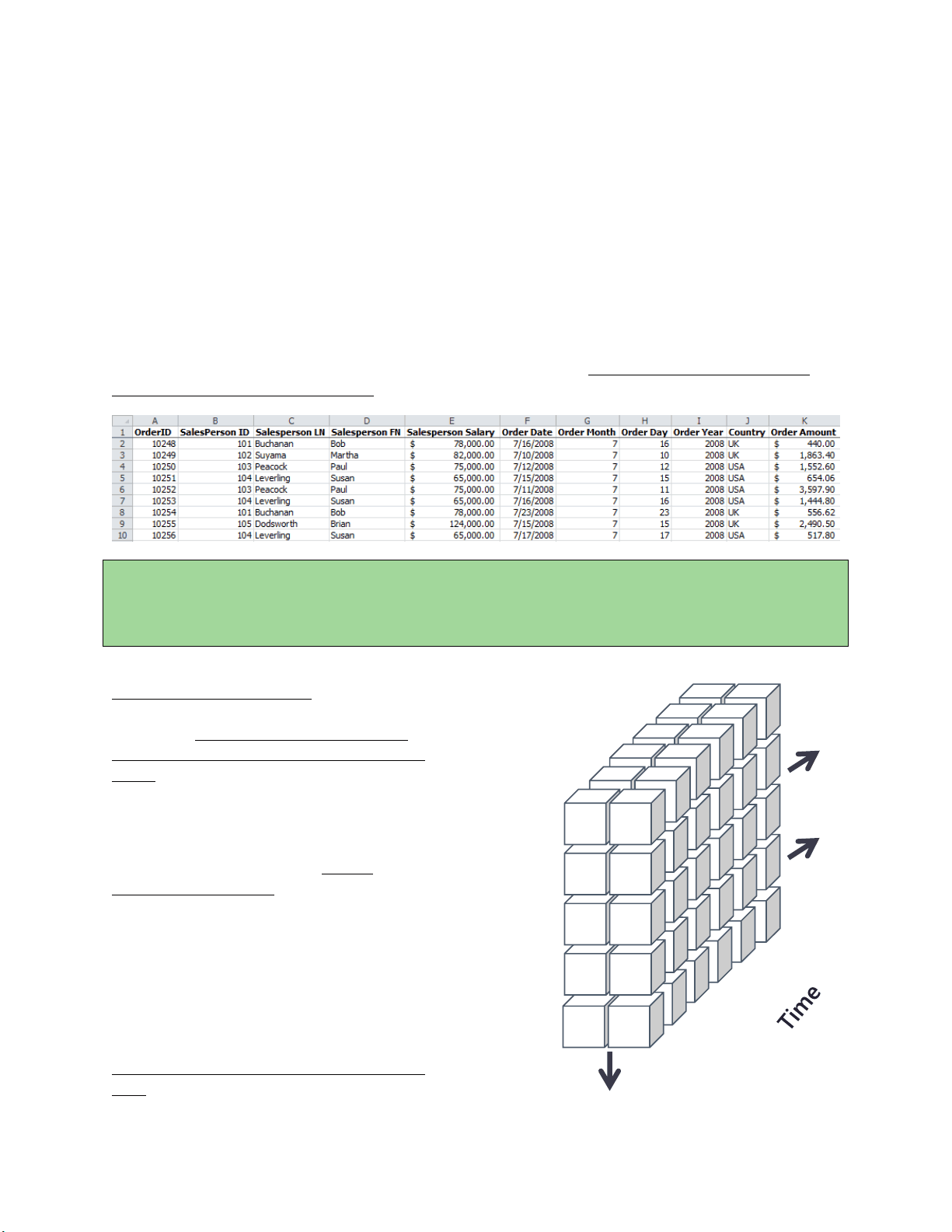
from 2008 to 2010 at a fictitious company. Here are the first few records:
Keep in mind that this is the entire data set in a joined, cube format. It’s not a typical, large -scale data cube that
would only contain summary data. In this tutorial, you’ll be basically doing the summarization work of the
dimensional engine by aggregating data as you need it. This works well for small data sets and gives you a lot of
flexibility, but as your data set gets very large this would need to be implemented as a summarized cube.
The underlying star schema has three dimensions
Salesperson, Country, and Time. You can see data
associated with each of those dimensions. For
example, the Salesperson dimension consists of
Salesperson LN, Salesperson FN, and Salesperson
Salary.
So a diagram of our data cube looks would look like
the image on the right.
There are only two values for the Country
dimension (USA and UK), but there are a lot for
Salesperson and Time. In fact, there are too many to
draw so we’ve used arrows to indicate that the cube
keeps going in that direction for a while. But this
gives you a feel for the structure of our data mart,
and it also indicates to us that we will be able to
aggregate and filter our results by salesperson, time,
and country.
Notice time is expressed two different ways in our
table. The first is with day, month, and year as
separate attributes; the second as a standard date/time value (mm/dd/yyyy). It isn’t necessary to do this a single
Order
amount
Order
amount
Order
amount
Order
amount
Order
amount
Order
amount
Order
amount
Order
amount
Order
amount
Country
Salesperson
USA
Bob
Buchanan
Martha
Suyama
Paul
Peacock
Susan
Leverling
7/10/2008
Order
amount
UK
7/11/2008
7/12/2008
7/15/2008
7/16/2008
7/17/2008
Susan
Leverling
…more
salespeople
…more time
periods
pf3
pf4
pf5
pf8
pf9
pfa

Partial preview of the text

Download In-Class Exercise #8 – Pivot Tables. and more Exams Applied Computing in PDF only on Docsity!

In-Class Activity #8: Pivot Tables and Charts Tutorial

(Due Monday, March 20 , 9 : 00 am)

Submission Guideline:

o Submit a single WORD /PDF file for Questions 1, 2, 3 and 4.

o The file should include: (1) the answers to each question, and

o (2) the Pivot Table or Pivot Chart (unless otherwise specified) created to answer the question.

This tutorial provides an overview of creating pivot tables and pivot charts in Microsoft Excel. The screenshots are from Office 2013. Things may look a little different if you have an earlier version (or the Mac version!) of Excel. First, let’s look at the data cube with which we will be working. The data cube is contained in the file “In-Class Exercise #8 - Salesperson Cube - for class.xlsx.” There is information about 800 sales transactions that occurred from 2008 to 2010 at a fictitious company. Here are the first few records: Keep in mind that this is the entire data set in a joined, cube format. It’s not a typical, large-scale data cube – that would only contain summary data. In this tutorial, you’ll be basically doing the summarization work of the dimensional engine by aggregating data as you need it. This works well for small data sets and gives you a lot of flexibility, but as your data set gets very large this would need to be implemented as a summarized cube. The underlying star schema has three dimensions – Salesperson, Country, and Time. You can see data associated with each of those dimensions. For example, the Salesperson dimension consists of Salesperson LN, Salesperson FN, and Salesperson Salary. So a diagram of our data cube looks would look like the image on the right. There are only two values for the Country dimension (USA and UK), but there are a lot for Salesperson and Time. In fact, there are too many to draw so we’ve used arrows to indicate that the cube keeps going in that direction for a while. But this gives you a feel for the structure of our data mart, and it also indicates to us that we will be able to aggregate and filter our results by salesperson, time, and country. Notice time is expressed two different ways in our table. The first is with day, month, and year as separate attributes; the second as a standard date/time value (mm/dd/yyyy). It isn’t necessary to do this – a single Order amount Order amount Order amount Order amount Order amount Order amount Order amount Order amount Order amount Country Salesperson USA Bob Buchanan Martha Suyama Paul Peacock Susan Leverling 7/10/ Order amount UK 7/11/ 7/12/ 7/15/ 7/16/ 7/17/ Susan Leverling …more salespeople …more time periods

date attribute would work just fine – but this allows us to look at a particular month (or year) a little more easily. Finally, order amount is our measured fact. So the indvidual order is the level of granularity for the fact table. Part 1. Create a basic pivot table

  1. Open the spreadsheet and go to the Insert tab. Click the Pivot Table button on the far left of the ribbon. You’ll see this dialog:
  2. Select the entire table by clicking on column A (on the “A” at the top of the column) and dragging across to column K. It will place that range in the dialog box. S elect the columns, even if they are already selected! Now place your PivotTable report on a new worksheet (so it’s easier to see). The dialog should look like this: If it does, then click “OK.”
  3. A new worksheet will be opened, and you’ll see the display below. There is a blank space on the left that will be populated with the data from your data cube, and a set of fields on the right.
  1. Click OK. You’ll see this: This shows us that $333,330.91 was sold in the UK, and $894,996.49 was sold in the USA. Question 1 Using the Value Field Settings dialog, answer the following question: Which country has larger orders (in dollars) on average? Part 2. Sorting and Multiple Levels of Categorization
  2. Create a new pivot table in a new worksheet (go back to the Source Data worksheet first). Again, select the entire table (Columns A through K).
  3. Drag Salesperson LN and Order Year to the “ROWS” box and Order Amount to the “VALUES” box. This makes Order Amount the computed value, organized

by Salesperson LN and Order Year.

3) Make sure the Value Field settings reflect computing the Sum of Order

Amount and not the count! (Follow the same steps as in Part 1, Step 6.) Your pivot table should look like this:

4) We can figure out which salesperson sold the most by sorting

the records.

Next to “Row Labels” at the top of the table there is a pull-down menu ( ). From that menu choose “More Sort Options…” (Note: This option may not be available for previous Mac versions. If so, download the latest Mac version for free by following the instructions here: https://computerservices.temple.edu/office-365)

  1. In the sort dialog, choose “Descending” and “Sum of Order Amount” as the value to sort. The dialog should look like this: Then click “OK.”
  2. We now see that Peacock sold the most ($225,763.68) over the years 2008 - 2010.

and your table will look like this: The numbers in bold still give us yearly totals for each salesperson. But let’s say we just wanted to see sales during the holiday season (November and December). We’ll need to apply a filter.

  1. In the Pivot Table Fields list, click on the right side of the Order Month entry.
  2. From the menu that appears choose “ Label Filters/Between… ” You’re choosing “Label Filters” because Order Month is a Row Label. Another way of thinking about it is that you are constraining the Time Dimension, and dimensions are essentially labels in a pivot table.
  3. In the Label Filter Dialog, enter 11 and 12 for the range, like this: Click “OK.”
  4. You’ll now see the total orders for only November and December: Note that you could also have just checked the values off of the pull- down menu instead of entering a range (go back to the pull-down menu

and you’ll see what I mean). This would have been just as easy in this case because there were only 12 values to choose from. But if you had many possible values it is usually easier just to enter the range through the dialog box.

  1. Notice you’ll also see a filter icon next to Order Month in the Field List. That indicates a filter has been applied to that label.
  2. Now remove the filter by clicking on the filter icon and selecting “Clear Filter from ‘Order Month’” from the drop-down menu.

8) Now let’s say we want to see which sales people have had a

lot of low volume days.

Let’s define “low volume” as less than $200 of sales in a day. So first let’s rearrange the fields in the pivot table that looks at total sales (Sum of Order Amount) per salesperson (Salesperson LN) per day (Order Date). It should look like this:

  1. We need to apply a filter to order amount. However, we can’t apply a filter to a computed value (i.e., “Sum of Order Amount”). We need to make “Order Amount” a row label; then we can apply a filter. So drag the Order Amount field (it’s already checked but don’t worry about that) to ROWS. You will now see this: and the resulting Pivot Table will look like this:
  2. Now create a label filter for Order Amount, showing only values less than 200 (go back and look at the previous filter steps if you don’t remember how to do this). You’ll now see fewer entries for each salesperson now:

0 50000 100000 150000 200000 250000 Total Total Salesperson LN Sum of Order Amount 0 20000 40000 60000 80000 100000 120000 140000 2008 2009 2010 Order Year Salesperson LN Sum of Order Amount And we can visually verify what we already knew – that Peacock was our best salesperson.

  1. Now let’s split that up by year to find out what was the best year for each of our salespeople. Drag the “Order Year” field from the Pivot Table Field List to the LEGEND (SERIES) box, like this:
  2. Your chart now looks like this And you can see that for most of our salespeople, 2009 was the best year. You will also find a pivot table generated along with the pivot chart. Question 4 a. Find out in which month the company has it’s highest level of sales. b. Then find the best month for the UK versus the USA.