Download Programming Environment: Linux and Eclipse - Lab 1a | CSCI 161 and more Lab Reports Computer Science in PDF only on Docsity!
CSCI 161: Introduction to Programming I
Lab 1a: Programming Environment: Linux and Eclipse
Goals
- to become acquainted with the Linux/Gnome environment
- to familiarize you with Eclipse
- to learn how to turn in assignments using submit
- to create a file using the editor
Before you Start…
Take your time and read carefully – most of the instructions you will need are in this lab.
Overview
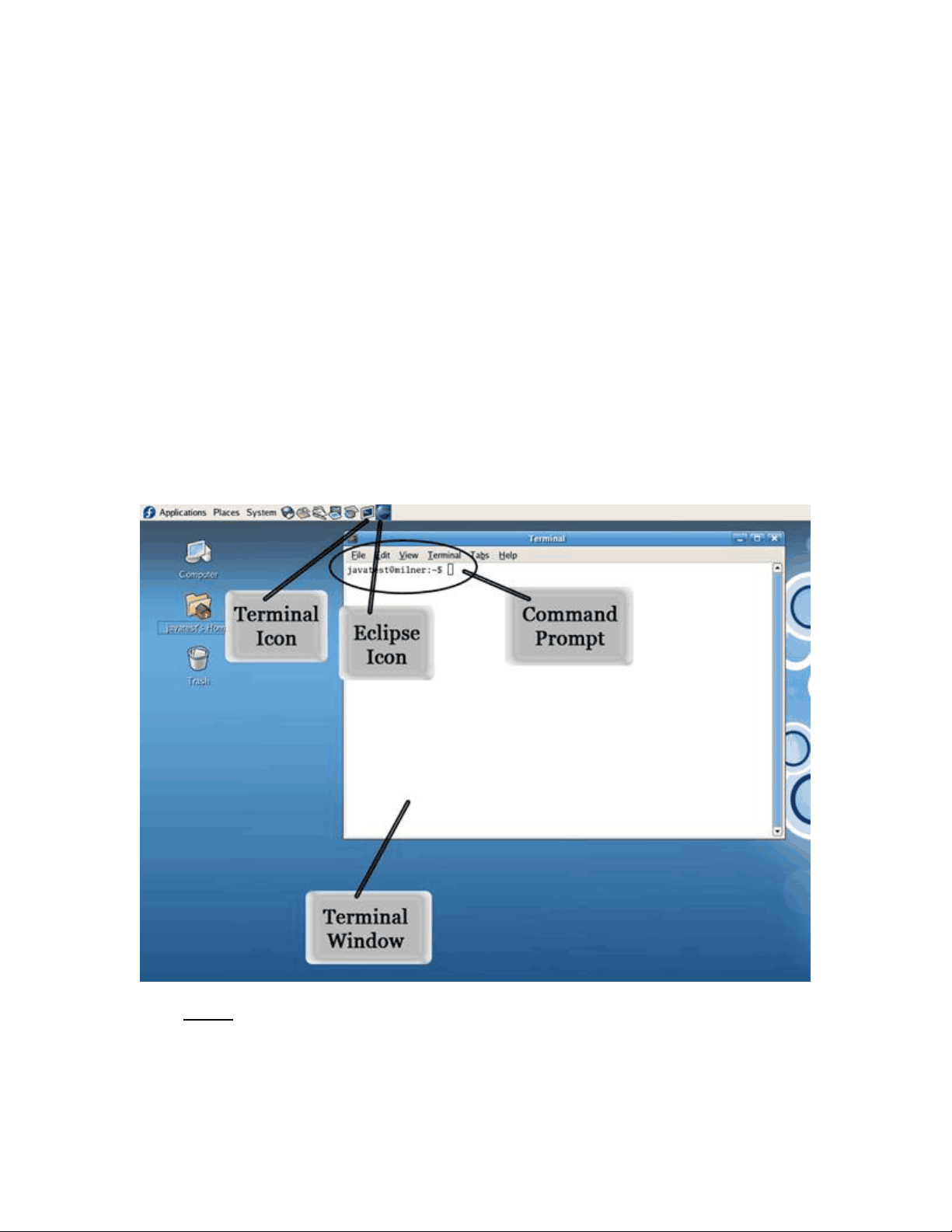
For this lab, you will a) login to a workstation running Linux/Gnome with your personal account, b) arrange your screen so that you have a terminal window as shown below, c) create a folder for storing your work for this course and then create a small text file containing some basic information, d) save that file and submit it to your professor much as you would submit an assignment for grading. These steps are detailed below. Each step is summarized in bold and then described in more detail.
In the second part of this lab (Lab_1b), you will type in a Java program and learn to use the Eclipse Integrated Development Environment (IDE). Finally (in Lab_1c), you will create a second small Java program on your own but based on the previous one. Together, the three submitted documents will be graded and will count as a regular assignment.
How to Use the Linux/Gnome Environment
Log in: You should see a login panel asking for your user id. Type your user id (first initial, middle initial, your whole last name). Press return to move to the password field. Type your password (first and last initials and last 4 digits of your student ID) using the number keys above the letters and not the numeric keypad. You won't see your password on the screen. Press enter to login. You should see the word 'fedora' in a startup message as your desktop is initialized. Note that your email address is [email protected]
Open Terminal: Although overall this is a graphical interface, you can interact with the system by typing commands. If you connect to the lab machines over the Internet, you will use a similar terminal interface with typed commands.
Click the Terminal icon on the upper tool bar/launcher panel (see figure above).
You will type commands in this window. If you wish to adjust its size, drag the lower right corner. Many of the mouse gestures work the same under Linux as in Microsoft Windows.
Change Your Password: Anyone who knows you well can guess your password. You should change it to something you will remember but is not guessable. It should not be a word, should contain a non-alphabetic symbol in the first 6 characters, and should be at least six characters long. Upper and lower case are significant. Think about it before you change it. It is non-trivial to fix a forgotten password, so make it something you'll remember and won't mistype. Do not type password numbers with the numeric keypad.
To change your password, type yppasswd in the terminal. You'll type your old (given) password, the new password, and then the new password again to make sure you have it right. What you type is invisible here.
Create and Open 161 Directory: In the terminal, type mkdir 161. This will create a new directory (folder) named ‘161’ in your home directory (/home/students/). Now type ls (for ‘list directory contents’) and you will see your new directory in the list.
You will create and modify your programs for this class in your 161 directory.
Move to 161 Directory in Terminal: The current directory is displayed as part of your terminal prompt, userid@machine:$
The terminal starts at your home directory every time you start a terminal session or login. You can tell you’re in your home directory when the prompt has a ‘~’ (tilde) as the working directory (between the colon and the dollar sign).
In order to work with your files for this class in the terminal, you must make sure that the terminal's working directory is 161. Do this by typing cd 161 (for ‘change directory’) at the prompt. You can check what the current working directory is by typing pwd or looking at your prompt. The output of pwd should be ‘/home/students//161’. Note the ‘161’ on the end.
Create Information File: We will be using the Eclipse integrated development environment (IDE) in this class. To open Eclipse, click on the Eclipse icon in the upper tool bar/launcher panel (the purple icon – see figure on previous page).
That rightmost icon of the arrow will launch the Workbench. Go ahead and click on that. Your window should now look like this:
Now, create a new text file by selecting File -> New -> Untitled Text File from the Eclipse menu. This will create a blank text file that will be opened in an editor pane (called ‘Untitled 1’) in the middle of the Eclipse workbench. Your cursor will automatically move to the top of the blank editor pane.
a) Type your name b) list the reason(s) you are taking this class (if your only reason is because it's required, describe why you think it's required), c) what do you currently know about programming and computer science, d) what do you have to do to be successful in this course and e) what makes you happy. Proofread your typing. You can use the mouse to move around.
Save the file using File -> Save As to save and name your file. Select ‘Lab_1a’ in the white middle pane so that it is displayed as the parent folder. Enter ‘myinfo.txt’ as the File name. Be sure to include the .txt extension. Click the ‘ok’ button.
Go back to your terminal window (if you closed it earlier, open a new terminal by clicking the icon in the tool bar/launcher panel). In the terminal window, verify that you are in the 161 directory (type cd 161 if you’re not). Type ls and you will see your new Lab_1 project directory, which will contain any files associated with the project. Type cd Lab_1a to enter the Lab_1 directory. Type ls again and you will see your ‘myinfo.txt’ file.
To display the contents of your myinfo.txt file, type cat myinfo.txt. You could also type part of the file name (as in cat my ) and then hit the TAB key to complete the file name.
Practice Some Terminal Commands: Learning a few terminal (Unix bash shell) commands will make it easier for you to use the system. You'll learn these commands as time goes by. If you are connecting to these machines from outside the lab, you will get a terminal when you connect.
In the terminal, type the commands in the left column. The right column describes what you are doing.
When you complete that series of commands, you should be back at your 161 folder. If not, figure out how to get there. Remember that you always need to move the terminal into ~/161 to work on files for this course.
Command Meaning
cd move to your home folder (~sabeach)
pwd print the current directory name
ls list files in home (161 should be there)
ls -l
list files, last time changed, size, and permissions
cd 161 move into 161 folder
cd .. move one folder up file hierarchy
!p repeat most recent command that started with p (pwd)
cd 161 move into 161 folder
repeat previous command (this gives you an error message because there is no ~/161/161)
man pwd
print manual for 'pwd' command; press spacebar to get next page if necessary; press 'q' to quit
This picture shows the file system for a student with userid sabeach. Her home directory is ~sabeach (or the full path, /home/students/sabeach) with two subdirectories, 140 and 161.
Log Out: From the menu at the top of the screen, choose System -> Log Out userid. You will be asked to confirm; click the ‘Log Out’ button. You are logged out when you see the login panel on the screen. Normally, before you leave the lab, you should log out this way. Save any work before logging out.
You'll login again to start the next part of the lab activity.
Further Exploration: There are many ways to learn about the system and get help. Explore these outside the lab time:
- explore the Help menu
- use Applications/Internet/Mozilla FireFox to get a web browser and visit Java sites on the Internet.
http://cs.millersville.edu/~zoppetti/161/Lab1a.html