Download Microsoft Access: Creating and Managing Databases with Tables, Fields, and Relationships - and more Assignments Database Management Systems (DBMS) in PDF only on Docsity!
Microsoft Access Tutorial
Microsoft Access Description
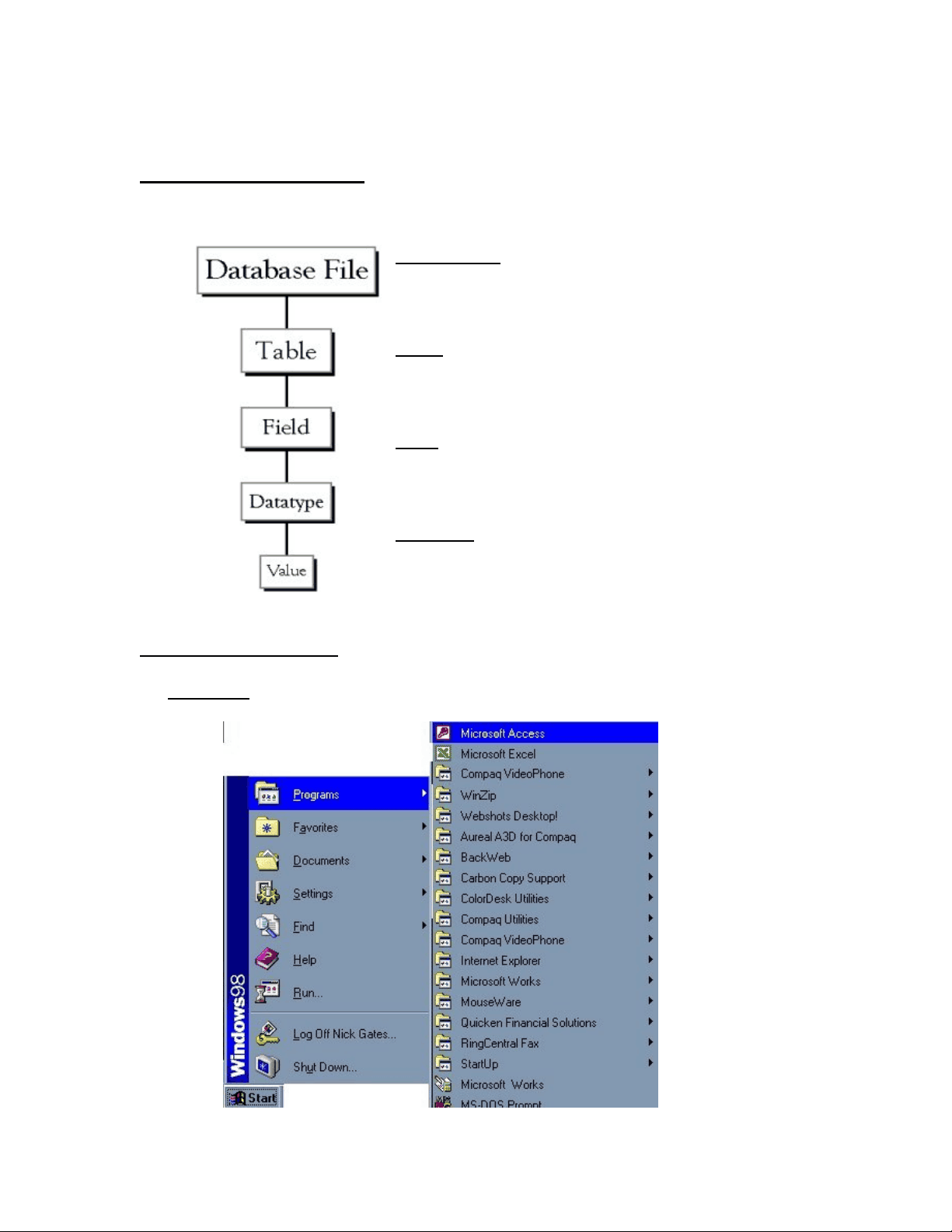
Microsoft Access is a powerful program to create and manage your databases. Below shows the Hierarchy that Microsoft Access uses in breaking down a database.
Database File: This is your main file that encompasses the entire database and that is saved to your hard-drive or floppy disk. Example) StudentDatabase.mdb
Table: A table is a collection of data about a specific topic. There can be multiple tables in a database. Example #1) Students Example #2) Teachers
Field: Fields are the different categories within a Table. Tables usually contain multiple fields. Example #1) Student LastName Example #2) Student FirstName
Datatypes: Datatypes are the properties of each field. A field only has 1 datatype. FieldName) Student LastName Datatype) Text
Starting Microsoft Access
• Two Ways
1. Click on Start --> Programs --> Microsoft Access
2. Double click on the Microsoft Access icon on the desktop.
Creating New and Opening Existing Databases
(Creating New Databases): 1) Click on File --> New 2) Select Blank Database (as marked by the red rectangle) (Opening Existing Databases): Click on File --> Open
Specify the name and location for the database
Below is the screen that shows up following the above-mentioned steps.
Create a Table from scratch in Design view
Double-Click on "Create table in Design view".
Define each of the fields in your table. o Under the Field Name column, enter the categories of your table. o Under Data Type column, enter the type you want for you categories. The attribute of a variable or field that determines what kind of data it can hold. For example, in a Microsoft Access database, the Text and Memo field data types allow the field to store either text or numbers, but the Number data type will allow the field to store numbers only. Number data type fields store numerical data that will be used in mathematical calculations. Use the Currency data type to display or calculate currency values. Other data types are Date/Time, Yes/No, Auto Number, and OLE object (Picture). o Under the Description column, enter the text that describes what you field is. (This field is optional). o For our tutorial enter the following items:
Primary Key
- One or more fields (columns) whose value or values uniquely identify each record in a table. A primary key does not allow Null values and must always have a unique value. A primary key is used to relate a table to foreign keys in other tables.
- NOTE: You do not have to define a primary key, but it's usually a good idea. If you don't define a primary key, Microsoft Access asks you if you would like to create one when you save the table.
- For our tutorial, make the Soc Sec # field the primary key, meaning that every student has a social security number and no 2 are the same. o To do this, simply select the Soc Sec # field and select the primary key button
o After you do this, Save the table (for example: Student)
Entering Data
In the following interface, double click the table name “Student”
Enter the data into each field.
NOTE: Before starting a new record, the Soc Sec # field must have something in it, because it is the Primary Key. If you did not set a Primary Key then it is OK.
Manipulating Data
- Adding a new row o Simply drop down to a new line and enter the information
- Updating a record o Simply select the record and field you want to update, and change its data with what you want
- Deleting a record o Simply select the entire row and hit the Delete Key on the keyboard
Relationships
After you've set up multiple tables in your Microsoft Access database, you need a way of telling Access how to bring that information back together again. The first step in this process is to define relationships between your tables. After you've done that, you can create queries, forms, and reports to display information from several tables at once.
A relationship works by matching data in key fields - usually a field with the same name in both tables. In most cases, these matching fields are the primary key from one table, which provides a unique identifier for each record, and a foreign key in the other table. For example, teachers can be associated with the students they're responsible for by creating a relationship between the teacher's table and the student's table using the TeacherID fields.
Having met the criteria above, follow these steps for creating relationships between
tables.
1. In the database window view, at the top, click on Tools ---> Relationships
- Select the Tables you want to link together, by clicking on them and selecting the Add Button
- Drag the primary key of the Parent table (Teacher in this case), and drop it into the same field in the Child table (Student in this case.)
4. Select Enforce Referential Integrity
- When the Cascade Update Related Fields check box is set, changing a primary key value in the primary table automatically updates the matching value in all related records.
- When the Cascade Delete Related Records check box is set, deleting a record in the primary table deletes any related records in the related table
- Click Create and Save the Relationship
Creating Queries
Queries are a fundamental means of accessing and displaying data from tables. Queries can access a single table or multiple tables.
In this section, we demonstrate how to query a single table. Creating a query can be accomplished by using either the query design view or the Query wizard. In the following example, we will use the Query Design View to create a query to select the Students who live in FL.
Queries are accessed by clicking on the Queries tab in the Access main screen. This is shown below:
Double click “Create query in Design view”. Select table Student and click Add
Then click Close and get the following interface
Save it as “Query1” and select Query--->Run and get the following results
You can switch the view by selecting View--->Design View or SQL View etc.
If select SQL View, the interface is shown below
Useful links:
http://cisnet.baruch.cuny.edu/holowczak/classes/2200/access/accessall.html#sec_starting
http://www.bcschools.net/staff/AccessHelp.htm#Starting%20Access