Download OneDrive Native Windows Application and more Schemes and Mind Maps Windows Programming in PDF only on Docsity!
OneDrive: Native Windows Application
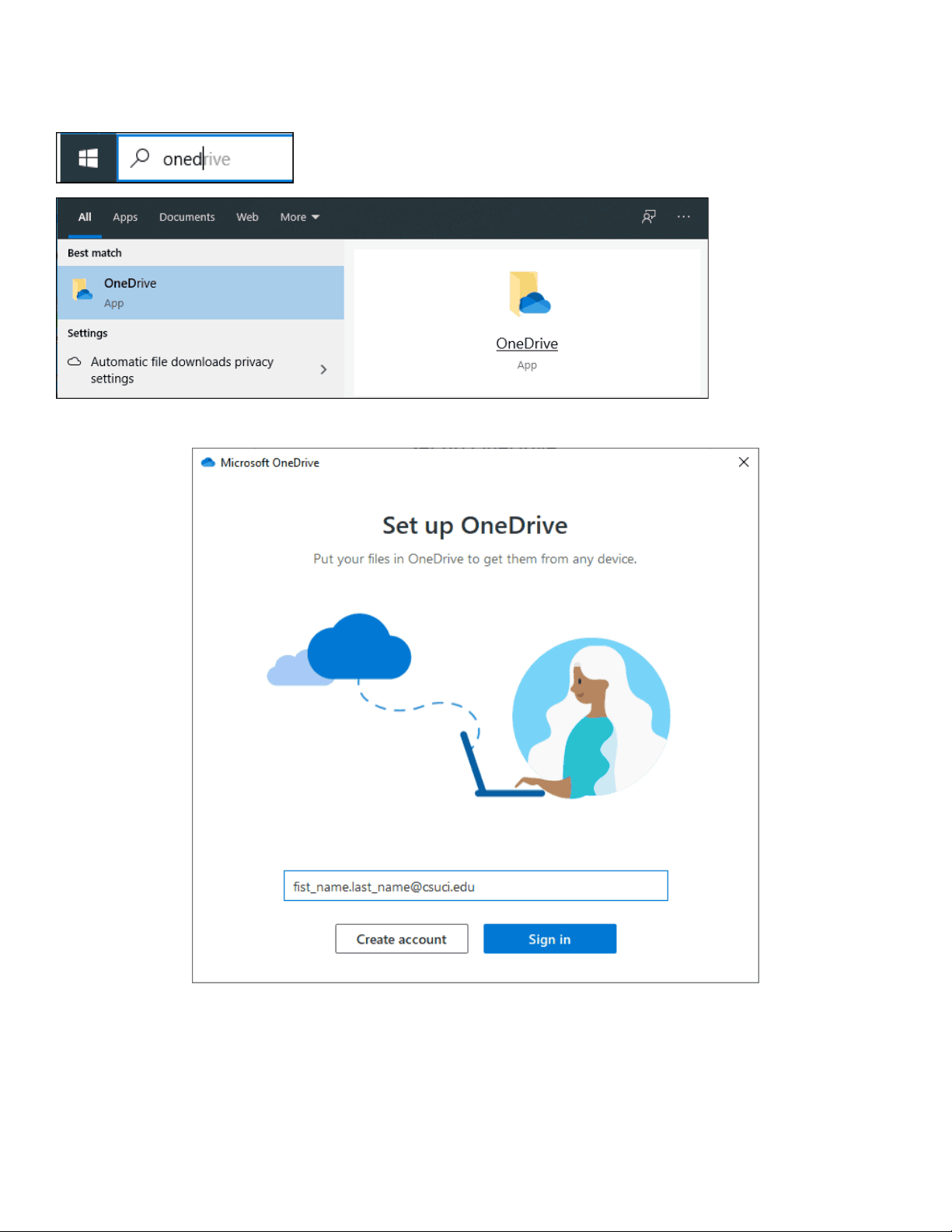
Use the Windows search bar to locate and start the OneDrive application. Click on the OneDrive application
This is the initial start screen. Once the OneDrive is configured the application will automatically launch when logging into the computer.
On the splash screen enter your user myCI email address. Then select the “Sign in” button. Creating an account is not needed.
Not Signed In view Signed In view
Once the OneDrive application is operational, a cloud icon will appear. If the Icon has a dark line through it, the application needs to be signed into.
After Initial Sign in
Review the provided information and then, at the last screen select the “Open my OneDrive…..”
Folder and files can be right-clicked on to adjust the status to the desired setting.
Sharing Folders and Files
Right-click the Folder or File to share and then select “Share”
The file share permissions can now be selected, and a user or users can be added to share the file with. When done, select the “Send” button.
The user will receive an email invitation to access the selected shared materials.
Shared documents can now be worked on in a collaborative method.
Locating OneDrive Files shared out to you. Then add them to your workstation.
Locate and select the OneDrive icon and then click on the Icon. Then select “View online.”
A webpage will open that will show various options. Select “Shared” then “Shared with you”
Select a folder you want to visibly see on your local workstation.
Then select the “Sync” button.