Version Control for OneDrive, Lecture notes of History

Click on a previous version and a new Word window will open with the previous document version. Note at the top, you will see the file name and previous ...

Typology: Lecture notes

2022/2023

Uploaded on 02/28/2023

shahid_88c
shahid_88c 🇺🇸

4.4

(26)

261 documents

1 / 3

Toggle sidebar

This page cannot be seen from the preview

Don't miss anything!

bg1
OneDrive for Business
1
Version Control for OneDrive
You can view or restore previous versions of documents in OneDrive for Business, as long as you haven't
turned off document versioning. Version control is accessible through Microsoft Office (Word, Excel,
PowerPoint) or the Office 365 Portal.
From Microsoft Office (Word, Excel, PowerPoint)
From the open file, click on the File tab:
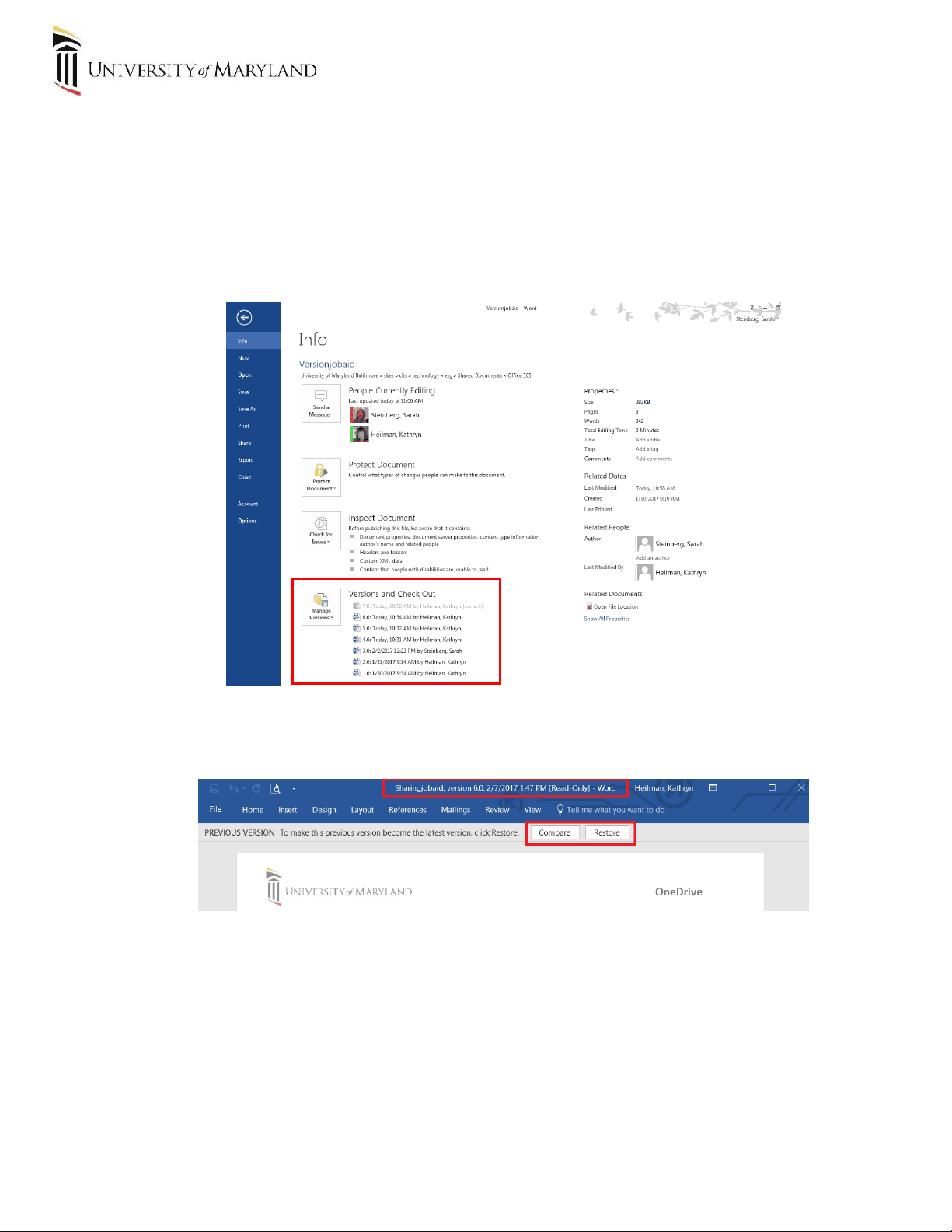
You will see the current version at the top and previous versions thereafter. Click on a previous version
and a new Word window will open with the previous document version. Note at the top, you will see
the file name and previous document saved date. There are two options, Compare and Restore.
If you would like to make this previous version become the latest version, click Restore.
If you click Compare, you will see all of the changes which have been made from this version
up until the latest saved version.
pf3

Partial preview of the text

Download Version Control for OneDrive and more Lecture notes History in PDF only on Docsity!

Version Control for OneDrive

You can view or restore previous versions of documents in OneDrive for Business , as long as you haven't turned off document versioning. Version control is accessible through Microsoft Office (Word, Excel,

PowerPoint) or the Office 365 Portal.

From Microsoft Office (Word, Excel, PowerPoint)

From the open file, click on the File tab:

You will see the current version at the top and previous versions thereafter. Click on a previous version

and a new Word window will open with the previous document version. Note at the top, you will see the file name and previous document saved date. There are two options, Compare and Restore.

 If you would like to make this previous version become the latest version, click Restore.  If you click Compare , you will see all of the changes which have been made from this version up until the latest saved version.

From the OneDrive app in the Portal

Go to OneDrive in a web browser from the portal. (http://portal.office.com)

From the OneDrive list of files, right-click the document for which you want to view or restore an earlier version, and then click Version History.

To view an earlier version

 In the Version History dialog box, select the link for the document version you want to view.

You will see the current version at the top and previous versions thereafter. Click on a previous version and a new Word window will open with the previous document version. The document opens in its application.